
What your dashboard looks like when you sell: a demo you can explore
A sample store that sold about six thousand dollars in a month. Go in, scroll through the sales, see what you kept, and request a test withdrawal. It is exactly what you would see.
This is a demo
The store, the sales and the buyers are made up. The products and their prices are real: they come from Mercatren's U.S. catalog. Nothing you do there moves money or touches a real account.
When you start selling through Mercatren, the first thing you want to know is how you will see your money: what sold, what was deducted, how much is available and how you take it out. Instead of explaining it in text, we built a sample store with a full month of sales so you can walk through it yourself.
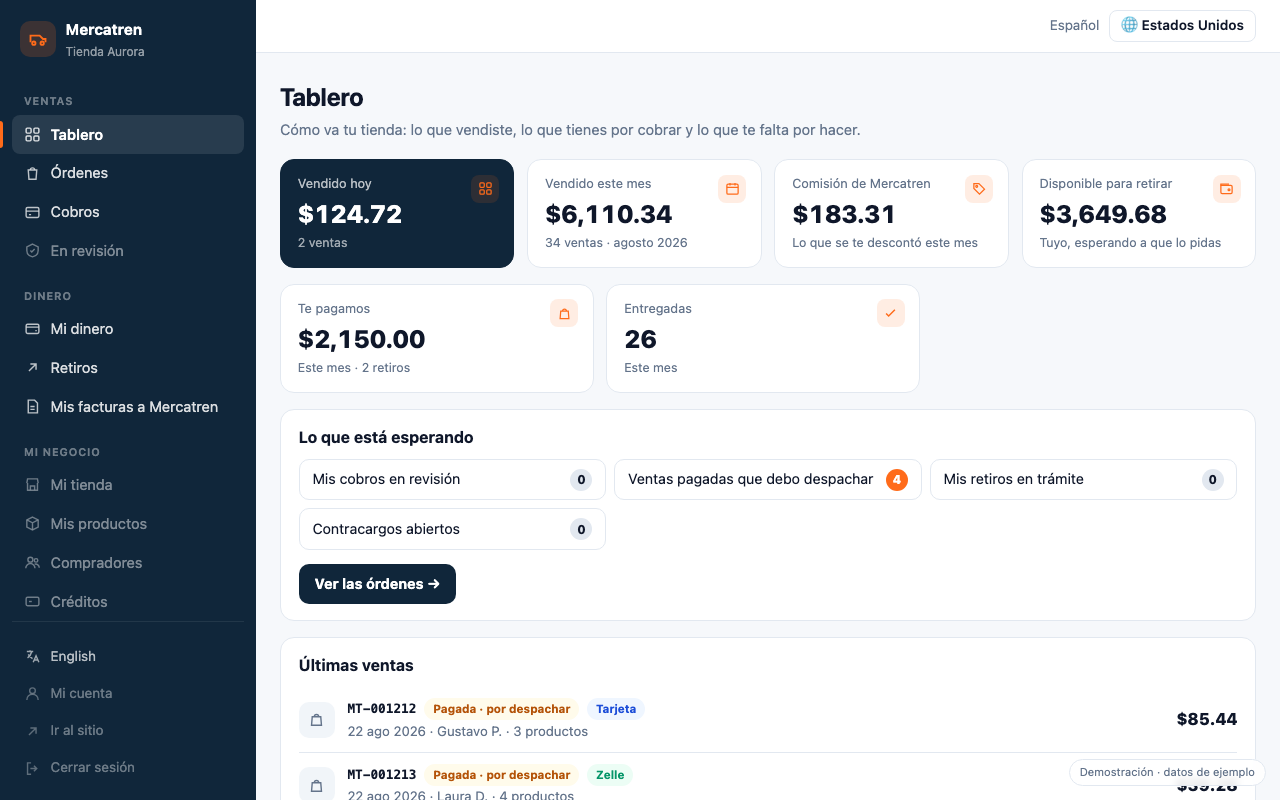
What you will find
- 1
Dashboard
What sold today and this month, the commission deducted, what you have available, and what is waiting on you.
- 2
Orders
Each sale with its buyer, products, payment method and where it stands: ordered, paid, shipped, delivered, in your money. Tap one to see the detail and what you kept from that sale.
- 3
Payments
All the money that came in, split by how it was paid: card, Zelle and the payment links you requested from your panel.
- 4
My money
The full picture: what your buyers paid, what the card processor took, Mercatren's commission, what you kept, and what is available after what you already withdrew.
- 5
Withdrawals
Request a test withdrawal: choose where it goes, the country decides which bank details are asked, see where the money comes from, and the amount is set aside until the team sends the transfer.
- 6
My invoices to Mercatren
For each sale, Mercatren buys the goods from you and issues a purchase order. There you see which order to invoice against and how much you get paid.
The numbers add up: what sold minus what was deducted equals what you kept, and what you kept minus what you already took out equals what is available. If you request a withdrawal in the demo, you will see it move from "available" to "requested, awaiting transfer" on the spot.
And in your real store?
It looks the same, with your sales. You sign in to your panel and find the same menus in the same order. If anything in the demo is unclear, write to us and we will walk you through it with your own store in front of you.